Custom Domains
Custom domains let you publish a ResultFly campaign under your own branded URL such as https://promo.example.com/ instead of a default platform URL.
This is useful when you want the campaign to:
- live under your brand domain or subdomain;
- share trust and recognition with your main website;
- use short, readable links for ads, QR codes, and social posts.
Availability
Custom domains are attached to a published campaign.
You must publish the campaign at least once before you can connect a domain. This ensures ResultFly already has a live release to serve when traffic arrives at the branded URL.
What you can configure
Each campaign can have:
- multiple custom domains;
- multiple route paths inside the same domain.
Examples:
https://example.com/https://brand.example.com/https://promo.example.com/summerhttps://promo.example.com/summer/vip/step-1
The full public URL is built from two parts:
- Domain — for example
promo.example.com - Path — optional; for example
/summer
If the path is empty, ResultFly uses /.
Paths can be multi-segment (not just one “folder”).
Setup flow
1. Open custom domain settings
From the campaign card in Workspace, click the :globe_with_meridians: icon to open Custom Domains.
Here is how the Custom Domains modal looks before you connect any domains:
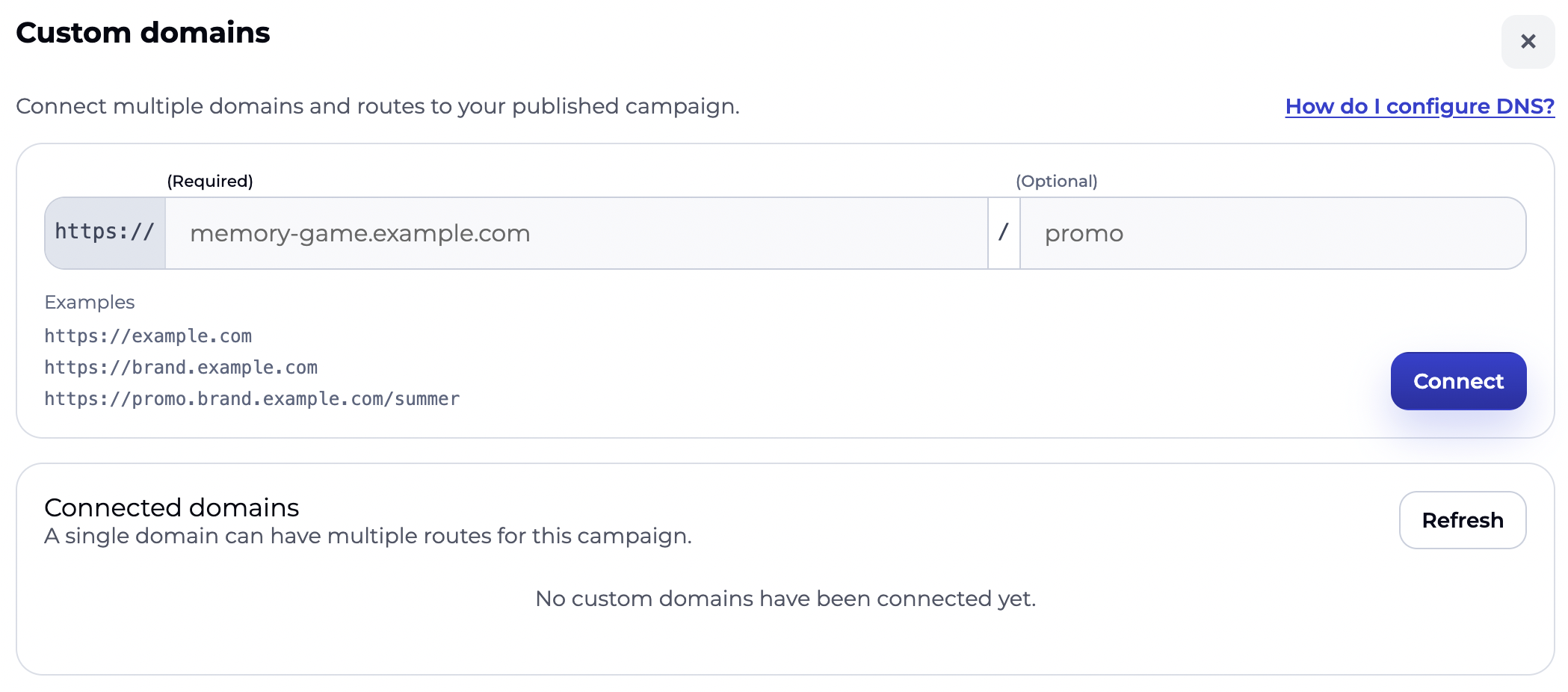
If the campaign is still a draft, ResultFly shows the settings surface but asks you to publish first.
2. Add the branded URL
Enter:
- the domain name;
- the optional path.
ResultFly saves the domain and route configuration and generates a CNAME target for that domain.
3. Update DNS
Create or update a DNS CNAME record at your DNS provider so that your domain points to the CNAME target shown in ResultFly.
When creating the record, double-check these fields (naming varies per DNS provider):
- Type:
CNAME - Name / Host: the domain you entered in ResultFly (for example,
promoforpromo.example.com). - Target / Value: the CNAME target shown in ResultFly. Copy it exactly (no
http://,https://, or path). - TTL: set a low TTL while you are setting things up (for example, 1–5 minutes). After the domain becomes Active, you can increase the TTL.
Common pitfalls:
- Remove conflicting records for the same host (for example
A/AAAA), otherwise the CNAME may not work. - A CNAME record is often not allowed on the root/apex domain (
example.com). If you need an apex domain, use your provider’sALIAS/ANAME/ “CNAME flattening” feature pointing to the same target, or use a subdomain such aswww.example.com. - Avoid domain labels with
--in positions 3–4 (for exampleab--example.com) — certificate issuance may fail.
At this stage the domain status is typically Pending DNS.
4. Click Verify
After DNS is configured, click Verify in ResultFly.
This step is important because it does two things in a controlled way:
- checks that DNS is already pointing to the ResultFly gateway;
- triggers SSL certificate issuance for the domain.
You do not need to buy or attach a separate SSL certificate manually. ResultFly issues and manages the certificate after verification succeeds.
Why Verify matters
Without an explicit verification step, certificate issuance often happens only when the first real visitor opens the domain.
That creates a bad first-load experience because the very first user may wait while the certificate is being prepared.
With Verify, the campaign owner can complete DNS validation and certificate issuance ahead of time, so the domain is ready before traffic arrives.
Domain statuses
Pending DNS
ResultFly is waiting for DNS to point to the generated CNAME target.
Here is how Pending DNS looks in the Custom Domains modal:
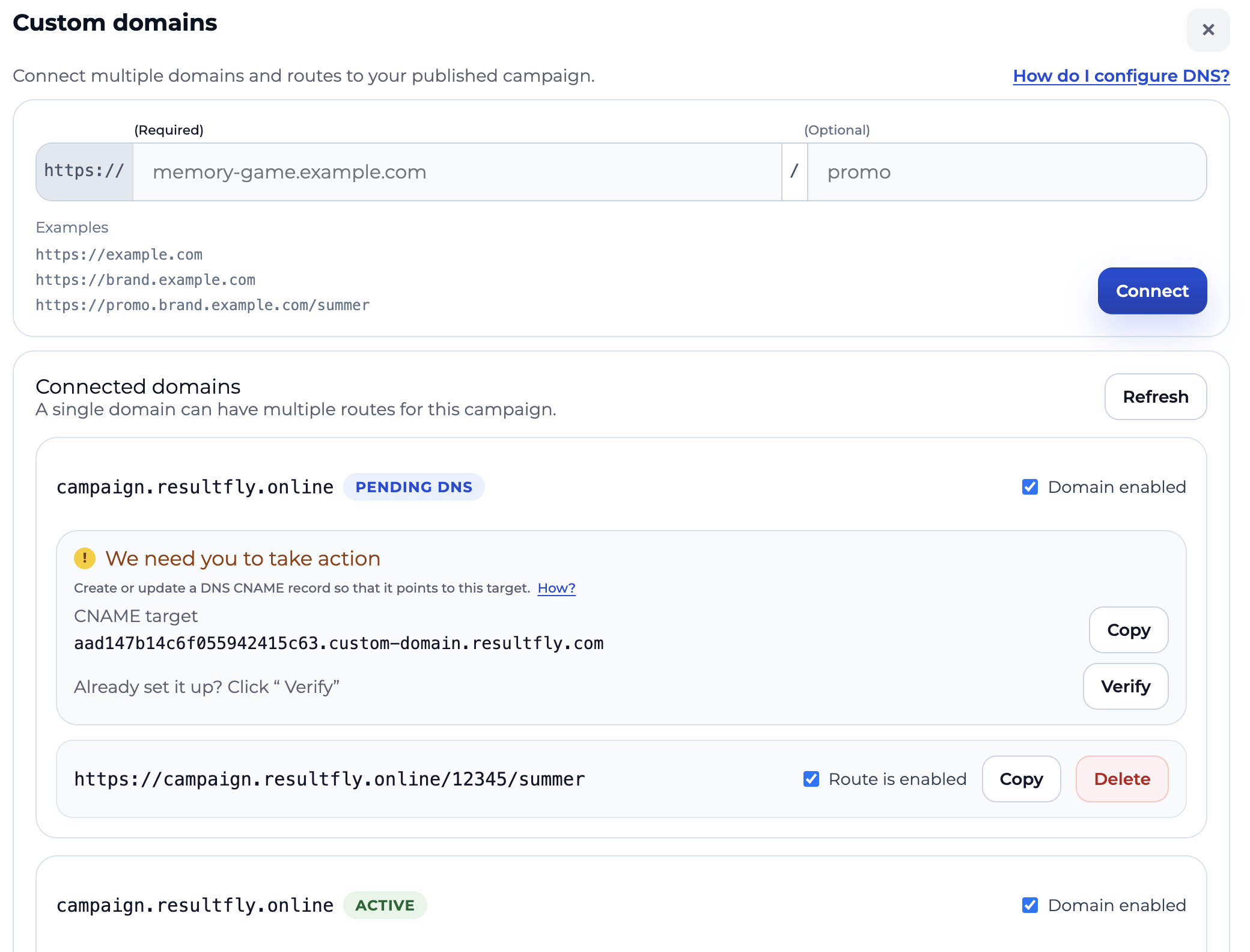
What to do:
- confirm the DNS record is saved with your provider;
- wait for DNS propagation if the change is fresh (it can take up to 24 hours);
- click Verify again.
In most cases, nothing is “broken” — DNS just hasn’t fully propagated yet.
If you want extra confidence while waiting:
- use a public DNS checker to see whether your CNAME has propagated globally (for example,
https://dnschecker.org/#CNAME/promo.example.com— replace with your domain); - use an SSL checker to confirm whether the certificate is already issued for your domain (for example,
https://www.sslshopper.com/ssl-checker.html).
Pending Certificate
DNS is already correct and ResultFly is checking the domain and issuing the certificate.
What to do:
- wait a short time;
- use Verify again if needed.
ResultFly may also retry verification automatically while the certificate is still being issued.
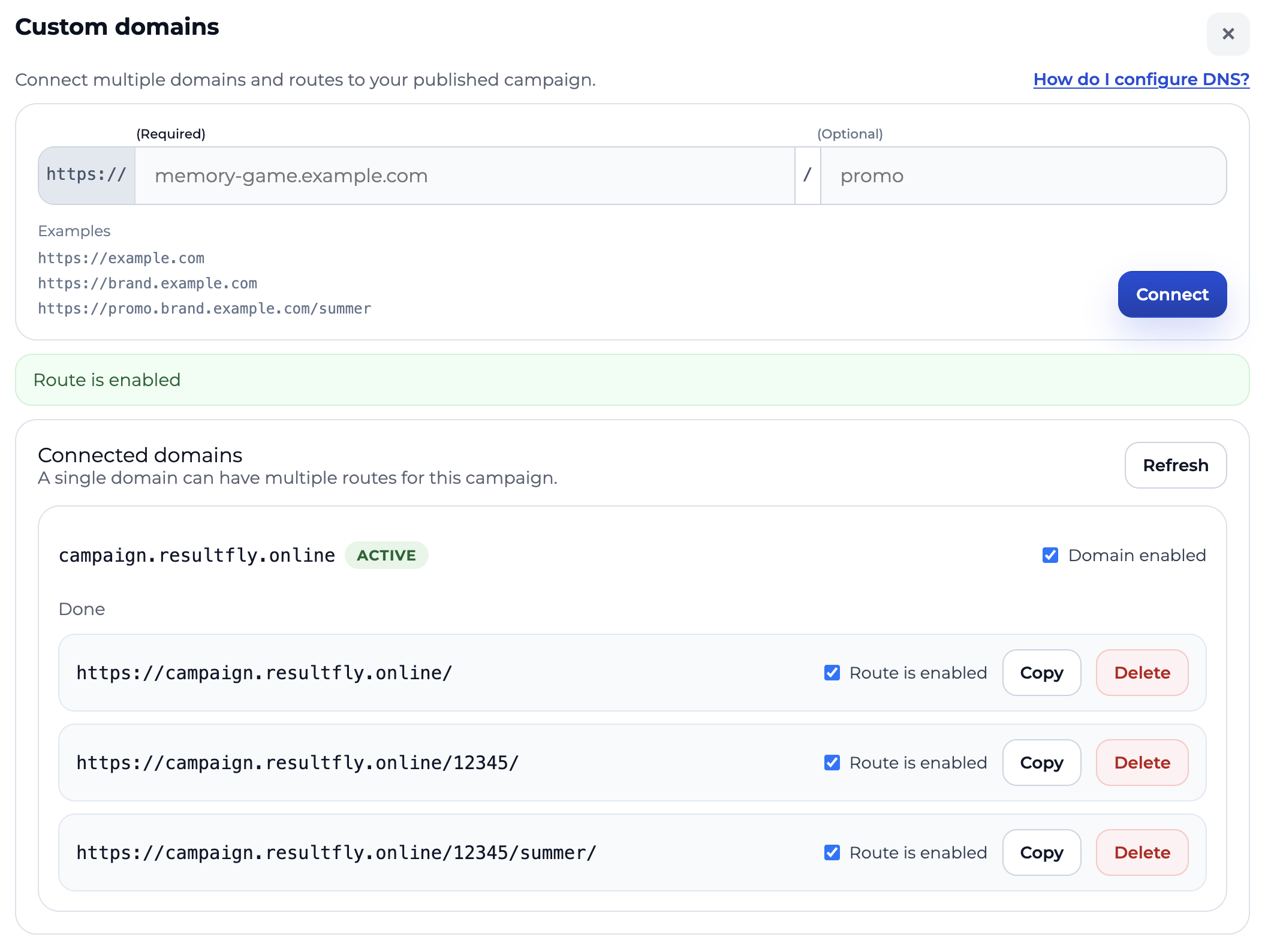
Active
The domain is ready:
- DNS points correctly;
- the SSL certificate has been issued;
- traffic can be served through the branded URL.
Here is how Active looks in the Custom Domains modal:
Failed
Certificate issuance did not complete successfully.
What to do:
- click Verify again;
- if the problem persists, re-check DNS and try once more after a short delay.
Disabled
The domain remains saved in configuration but is turned off for traffic.
This is useful when you want to pause usage without deleting the setup entirely.
Routes inside a domain
A single domain can contain multiple route paths for the same campaign.
For example:
https://promo.example.com/https://promo.example.com/summerhttps://promo.example.com/vip
Each route can be enabled or disabled independently.
If the entire domain is disabled, its routes cannot be turned back on until the domain itself is enabled again.
If you delete the last remaining route, the domain record is removed as well.
Operational guidance
- Use lowercase ASCII domain names such as
promo.example.com. - Route paths can be multi-segment; keep them readable.
- Prefer one clear branded URL per marketing entry point.
- Finish the Verify step before sending real traffic.
- Re-check the domain status after DNS changes instead of assuming certificate issuance is complete.
Troubleshooting
“DNS is not configured yet.”
Most common causes:
- the DNS record still points elsewhere;
- the record was saved with the wrong host or target;
- DNS propagation has not completed yet.
DNS propagation can take up to 24 hours. In most cases, you just need to wait a bit longer.
If you want to validate progress, use a public DNS checker (for example, https://dnschecker.org/#CNAME/promo.example.com — replace with your domain) to confirm the CNAME is visible from multiple locations, then click Verify again.
“Certificate is being issued.”
This usually means DNS is already correct and the platform is finishing the SSL step.
Wait a bit (from seconds to a few minutes) and retry if needed. If you want extra confidence, use an SSL checker (for example, https://www.sslshopper.com/ssl-checker.html) to see whether the certificate is already visible.
“Certificate issuance failed.”
This is usually recoverable.
Click Verify again after a short delay. If the failure repeats, confirm the domain still resolves to the correct target and retry.